Build a new interface
Describe a screen in Codex Desktop or Claude Desktop. Review the proposed changes before your next action.
Codex Desktop
Dictate the change with your Mac microphone, scroll the proposal and use shortcuts you have mapped to Siri Remote.
v0.2.3 beta · Apple silicon · macOS 13+
Remote not included · Voice uses your Mac microphone
Describe a screen in Codex Desktop or Claude Desktop. Review the proposed changes before your next action.
Dictate the issue and expected behavior. Review the diff, then use the shortcut you mapped to your coding tool.
Ask AI to explain a function. Scroll through the answer, open reference docs, then ask a follow-up.
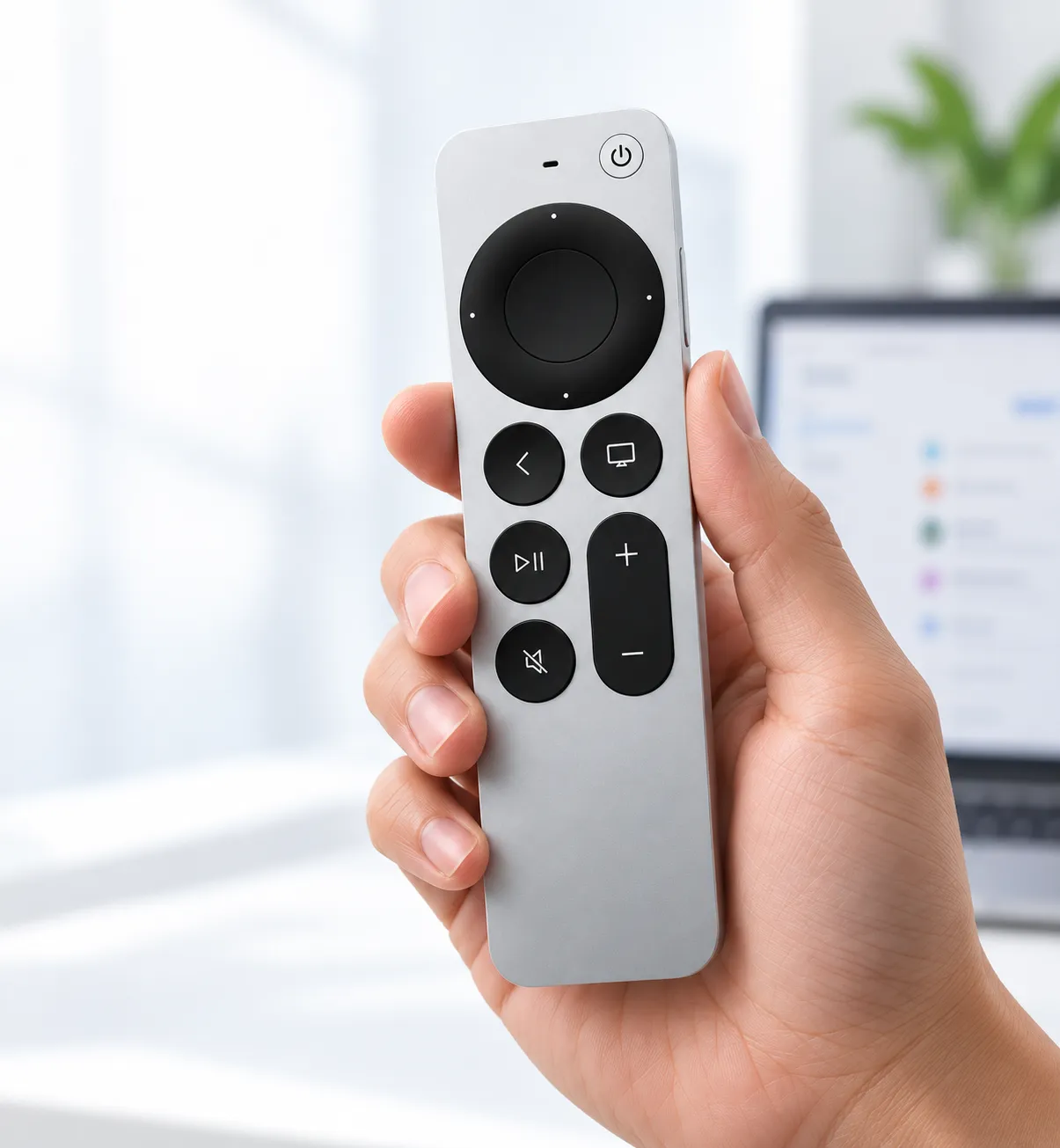
See how Remoter brings your desktop AI workflow to one hand: dictate, review and use your configured shortcuts.
Illustrated desktop workflow. Actions depend on your mapped shortcuts and active app. No microphone or AI connection is used here.
Choose a button on Siri Remote and assign the action or shortcut you need.
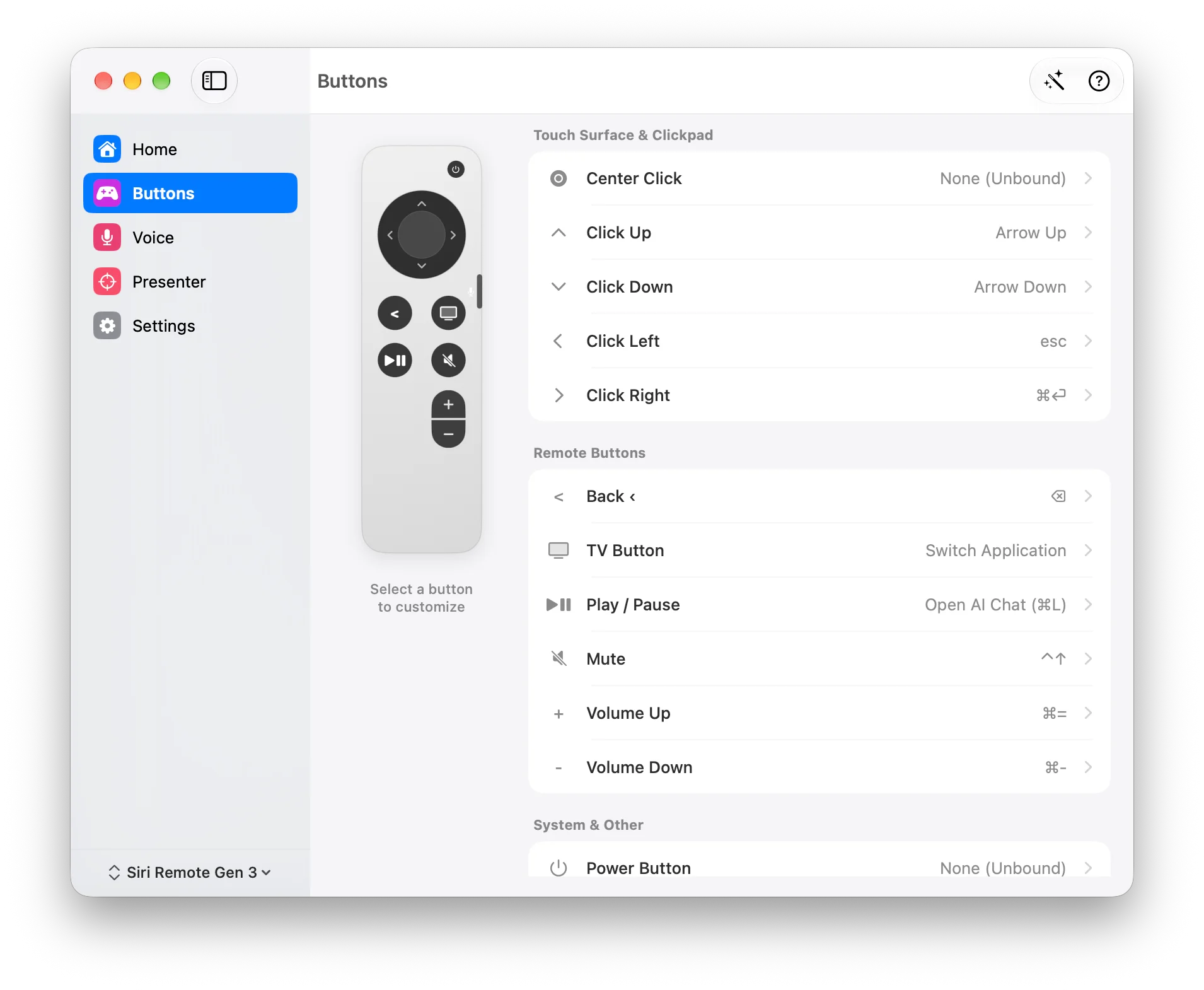
Install, pair and assign a shortcut in the Buttons screen. Try it in the focused app before adding more actions.
Unzip the download, move Remoter to Applications, then open the app.
Pair in Mac Bluetooth settings. Grant Accessibility and Input Monitoring.
Open Buttons to choose a remote button and assign its action. Test the mapping in the active app.
Actions depend on your mapping and the focused Codex Desktop screen. Review the result first and configure only shortcuts supported by your app version.
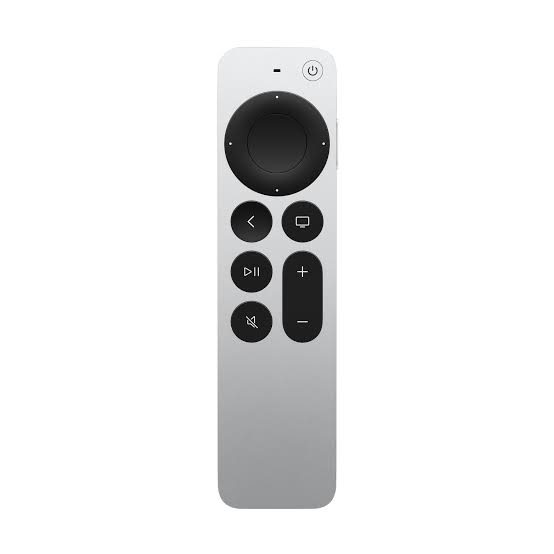
Remoter is a Mac app. It maps Siri Remote Gen 3, Gen 1, Xiaomi Remote 2 Pro, or Xiaomi Remote Standard to pointer movement, scrolling and shortcuts. The remote is not included.
Voice processing depends on your engine and settings. Local options include Apple Speech, WhisperKit and Ollama. Cloud providers such as Gemini and OpenAI send data to the service you choose and may charge fees.
No for buttons, scrolling and voice through the Mac microphone. Full Setup is only for remote audio, if your setup meets its additional requirements.
Dictate the change with your Mac microphone, scroll the proposal and use shortcuts you have mapped to Siri Remote.
Describe your request in Claude Desktop. Read the answer at your pace, then use a mapped shortcut to continue.
Use your Siri Remote to trigger configured voice shortcuts, scroll a long answer and return to the prompt. Remoter keeps the next question within reach.
Select a draft and say how you want it changed. With a configured AI provider, Remoter can rewrite the selection—or put the result on your clipboard.
Reading a long answer or reviewing a change? Lean back or stand up, with scrolling and configured shortcuts still in your hand.
Pause a track, change the volume or switch apps with your mapped Siri Remote buttons. Keep your Mac in control from your seat.
Development preview · The download is beta v0.2.3; Presenter Pro is not verified in that package.
Try one workflow with the remote you already have.
v0.2.3 beta · Apple silicon · macOS 13+
Remote not included