
Lean back to read
Keep the screen readable. Use the ring to move through an answer at your pace.
Room to move
Reading a long answer or reviewing a change? Lean back or stand up, with scrolling and configured shortcuts still in your hand.
v0.2.3 beta · Apple silicon · macOS 13+
Siri Remote required. Sold separately.
The next part of the session is mostly reading. Leave the keyboard where it is. Adjust your chair, stand, or take a few steps while the screen stays visible and you remain in Bluetooth range.
A small preview
Add a loading state to a login button. Try the side button, the ring, then approve or reject the result.
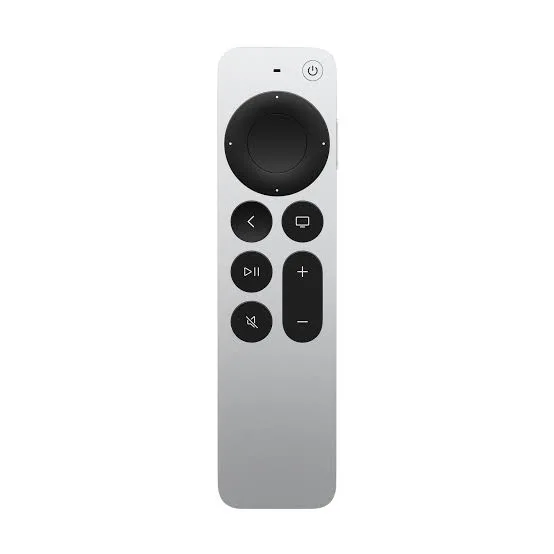
Try the controls below. On your Mac, bind them to your preferred shortcuts.
Tab to a control. Enter or Space to activate.
Press the voice button below to send the example request.
Your voice prompt
Add a loading state to the login button. Prevent duplicate submissions.
Proposed change
The button is disabled while signing in. The label changes to “Signing in…” until the request finishes.
LoginButton.tsx

- <button onClick={signIn}>
+ <button disabled={isLoading}
+   onClick={signIn}>
+   {isLoading ? loadingLabel : label}
+ </button>
The button is disabled while signing in. The label changes to “Signing in…” until the request finishes.
Example result
This is a scripted preview. No microphone, AI account or Mac connection is used.
Actions depend on the app, preset and focused window. Remoter sends your configured shortcuts; you stay in charge.
Keep the screen readable. Use the ring to move through an answer at your pace.

Keep navigation and shortcuts in one hand while you change position.
Circle the ring to scroll
Detail from the app · Vietnamese UI

Illustrated example

The plan starts with your goal.
Break the work into clear steps.
Review the part that matters.
Ask a follow-up when ready.
Move through a long answer; pause to read.
Use the keyboard when the task needs it. The remote adds another way to work.
Actions depend on the app, preset and focused window. Remoter sends your configured shortcuts; you stay in charge.
Your first session
Start with button control and your Mac’s microphone. Add the advanced remote microphone only if you need it.
Unzip the app, move it to Applications, then open Remoter and follow System Check.
Pair in Mac Bluetooth settings. Allow Accessibility and Input Monitoring when requested.
Apply a coding preset. Focus a test window, try scrolling, then check one shortcut.
Hold Back and Volume Up together near your Mac for about 5 seconds, then select the remote in Bluetooth settings.
Remoter offers an alternative way to control your Mac, not a health treatment. Comfort depends on your desk, screen position and habits. Keep the display readable and take breaks that suit you.
Remoter is a Mac app. It maps an Apple TV Siri Remote to pointer movement, scrolling and shortcuts. The physical remote is not included.
Keep your keyboard for detailed edits. Remoter gives you another way to prompt, navigate and trigger frequent actions while reviewing work.
Yes, by pairing it back to Apple TV. It controls the device it is paired with; switching is not simultaneous. Follow Apple’s pairing instructions.
View maker’s detailsIt depends on the voice mode. On-device recognition stays local when supported. Cloud transcription, AI rewriting and connected AI apps send data to the chosen provider.
No, to try buttons, scrolling and voice through your Mac microphone. Only choose Full Setup if you need audio from the Siri Remote itself and can meet its requirements.
Not yet. The current beta can be downloaded here. The planned app price is $19 once; commercial terms will be announced before sales open.
Try one workflow with the remote you already have.
v0.2.3 beta · Apple silicon · macOS 13+
Siri Remote required. Sold separately.