How it works
Your remote already knows the gestures.
Remoter translates Siri Remote gestures into Mac pointer movement, scrolling and shortcuts. Pair it, choose a preset and try one action at a time.
v0.2.3 beta · Apple silicon · macOS 13+
Siri Remote required. Sold separately.
One remote. Your choice of controls.
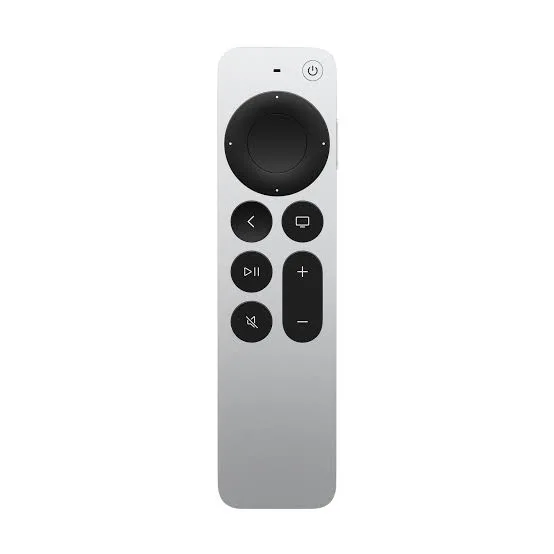
Slide to move the pointer. Trace the ring to scroll. Bind a button to the shortcut you use most. The side button can trigger your chosen voice mode; the microphone source depends on your setup.
Slide to point. Click to select. Tune speed in Remoter’s settings.
Your first session
From remote to ready.
Start with button control and your Mac’s microphone. Add the advanced remote microphone only if you need it.
Download and open
Unzip the app, move it to Applications, then open Remoter and follow System Check.
Pair and allow
Pair in Mac Bluetooth settings. Allow Accessibility and Input Monitoring when requested.
Choose your buttons
Apply a coding preset. Focus a test window, try scrolling, then check one shortcut.
Hold Back and Volume Up together near your Mac for about 5 seconds, then select the remote in Bluetooth settings.
See the setup in practice
Connect the remote, assign your gestures and choose the voice path that suits you.
Connect, then try the controls
Detail from the app · Vietnamese UI

Illustrated example
- Download and open
- Pair and allow
- Choose your buttons
Follow the pairing guide, then test pointer movement, scrolling and your mappings.
One button, different presses
Detail from the app · Vietnamese UI

Illustrated example
Focus the prompt
Detail from the app · Vietnamese UI
Illustrated example
Start configured dictation
Detail from the app · Vietnamese UI
Illustrated example
Open a new conversation
Assign each gesture separately, then save.
Examples require your chosen mappings and the correct app in focus.
Choose an app
Detail from the app · Vietnamese UI

Available actions to assign; this list is not the selected button’s mapping.
Illustrated example
Example change
− <button>
+ <button disabled={loading}>Detail from the app · Vietnamese UI

Available actions to assign; this list is not the selected button’s mapping.
Illustrated example
Make the next step clearer.
Start with one small step, then check the result.
What should I check first?
Detail from the app · Vietnamese UI

Available actions to assign; this list is not the selected button’s mapping.
Illustrated example
Speak to the configured Gemini app
Make the next step clearer.
Use an assigned shortcut; app setup and microphone choice still apply.
Detail from the app · Vietnamese UI

Available actions to assign; this list is not the selected button’s mapping.
Illustrated example
Read a page, switch a tab
Choose the browser actions you want to assign.
Examples require your chosen mappings and the correct app in focus.
Check your setup before you download.
- Your Mac
- The included v0.2.3 download is for Apple silicon Macs running macOS 13 or later. There is no Intel download here.
- Your Siri Remote
- Start with a 3rd-generation Siri Remote (USB-C), the documented setup. Older models have different controls; do not assume full feature parity.
- Your voice mode
- App-only uses the Mac microphone. Remote audio requires Full Setup, Apple’s PacketLogger and extra permissions. Availability depends on your setup.
A small preview
One request. Three moves.
Add a loading state to a login button. Try the side button, the ring, then approve or reject the result.
Try the controls below. On your Mac, bind them to your preferred shortcuts.
Tab to a control. Enter or Space to activate.
An idea, ready to become a prompt.
Press the voice button below to send the example request.
Your voice prompt
Add a loading state to the login button. Prevent duplicate submissions.
Proposed change
The button is disabled while signing in. The label changes to “Signing in…” until the request finishes.
LoginButton.tsx

- <button onClick={signIn}>
+ <button disabled={isLoading}
+   onClick={signIn}>
+   {isLoading ? loadingLabel : label}
+ </button>
The button is disabled while signing in. The label changes to “Signing in…” until the request finishes.
Example result
- 1. Speak
- 2. Review
- 3. Decide
This is a scripted preview. No microphone, AI account or Mac connection is used.
Actions depend on the app, preset and focused window. Remoter sends your configured shortcuts; you stay in charge.
The advanced microphone is a system feature.
Full Setup adds a CoreAudio plug-in and a root capture service. With PacketLogger available, it uses Bluetooth diagnostic capture to receive remote audio. This relies on an undocumented Apple protocol and can vary across macOS versions. Use the supplied uninstaller to remove the stack.
Voice setup has extra requirements
Detail from the app · Vietnamese UI

Illustrated example
Remote → assigned action
Mac / selected microphone → audio
On-device recognition when supported
Cloud mode → configured provider
Remote microphone capture needs the advanced setup. Cloud services can send audio or text off your Mac.
Mac microphone permission and remote microphone components serve different paths.
A few things before you start.
What changes when I install Full Setup?
It adds the virtual microphone and a privileged capture service. Remote audio also needs Apple’s PacketLogger and additional permissions. Start with app-only if you just want control and your Mac microphone.
Is Remoter hardware or software?
Remoter is a Mac app. It maps an Apple TV Siri Remote to pointer movement, scrolling and shortcuts. The physical remote is not included.
Does the remote replace my keyboard?
Keep your keyboard for detailed edits. Remoter gives you another way to prompt, navigate and trigger frequent actions while reviewing work.
Can I still use it with Apple TV?
Yes, by pairing it back to Apple TV. It controls the device it is paired with; switching is not simultaneous. Follow Apple’s pairing instructions.
View maker’s detailsDoes my voice leave the Mac?
It depends on the voice mode. On-device recognition stays local when supported. Cloud transcription, AI rewriting and connected AI apps send data to the chosen provider.
Do I need the advanced microphone setup?
No, to try buttons, scrolling and voice through your Mac microphone. Only choose Full Setup if you need audio from the Siri Remote itself and can meet its requirements.
Can I buy Remoter now?
Not yet. The current beta can be downloaded here. The planned app price is $19 once; commercial terms will be announced before sales open.
Put the next move in your hand.
Try one workflow with the remote you already have.
v0.2.3 beta · Apple silicon · macOS 13+
Siri Remote required. Sold separately.